
MBM App Not Working On Android
Updated
The MBM app may fail to open, crash, freeze or reject a login on Android. The cause may involve your device, installed version, network connection or service status.
MBM app failures often appear as a blank screen, endless loading, repeated crashes or a connection error. The source may sit within Android, the installed version, local storage or the network connection.
Service faults and regional access rules can also stop the app from working normally. Start with basic checks before reinstalling it or resetting your device.
This approach protects account access, stored preferences and your current app setup. It also helps support identify the issue if the problem continues.
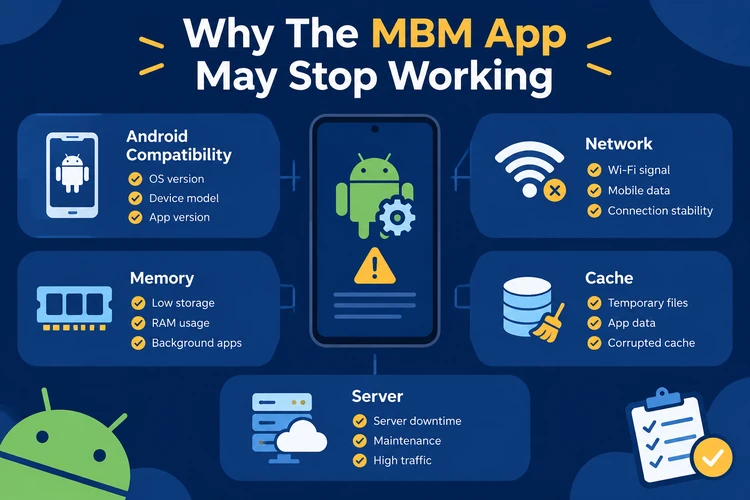
Why The MBM App May Stop Working
An Android problem can resemble a casino app problem because related screens may show similar messages. Several technical categories can interrupt the mbm app.
Recognising the pattern helps narrow the cause. A single-device crash usually suggests a local issue, while the same error across several devices may indicate a service or network problem.
- Android incompatibility - Your Android version or chipset may not support the current release. Watch for an immediate close, installation warning or repeated crashes.
- Outdated app components - Missing runtime libraries and system components can interrupt startup. This may follow a failed update or incomplete Android upgrade.
- Damaged temporary files - Corrupted cache data may cause a blank screen, frozen loading or an unstable login session within mbm online casino services.
- Low available memory - Background apps can consume enough RAM to prevent content from loading. The app may close without showing a clear message.
- Unstable internet access - Weak Wi-Fi, interrupted mobile data, DNS faults and restricted networks can block requests or cause timeouts.
- Server failures - Maintenance, traffic overload or an incomplete deployment may affect account, game and payment requests together.
- Regional restrictions - Location controls may limit access within India or block certain mbm casino services from unsupported locations.
These signs do not confirm the cause by themselves. Compare the message with your connection, device performance and recent Android changes before selecting a fix.
MBM App Not Opening Or Crashing On Android
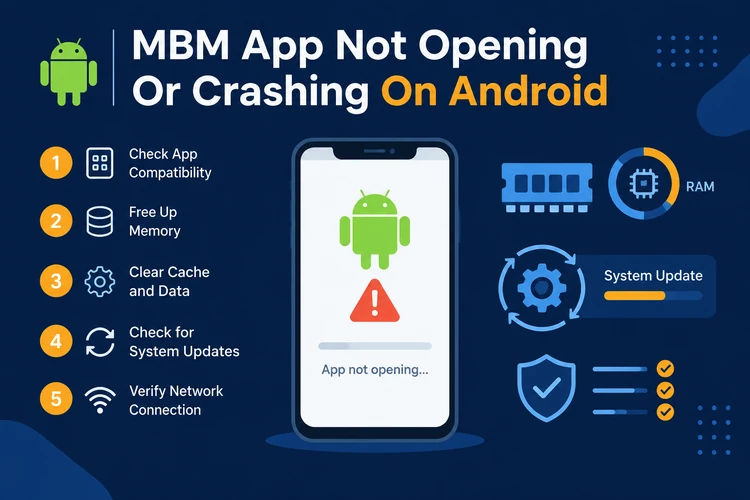
A launch failure usually involves startup memory, damaged data or an unsupported app version. Follow these diagnostic steps in order:
- Restart the Android device to close background processes and release temporary system resources.
- Check available RAM and storage, then close unused apps before reopening mbm app services.
- Update Android System WebView, Android Security Patch and Google Play system components when available.
- Open Android Settings, select Apps and locate MBM to review its version, storage use and crash details.
- Check for an official app update and install it through the same trusted source used previously.
- Switch between mobile data and Wi-Fi to identify a network-specific startup issue.
- Clear the app cache if loading remains frozen, without clearing full storage at this stage.
Clearing app data can remove local settings, cached session data and saved preferences. You may then need to sign in again through mbm india access.
Use this option after reviewing the crash message and checking connectivity. Record any error code shown by Android before removing local information.
MBM App Connection And Loading Problems
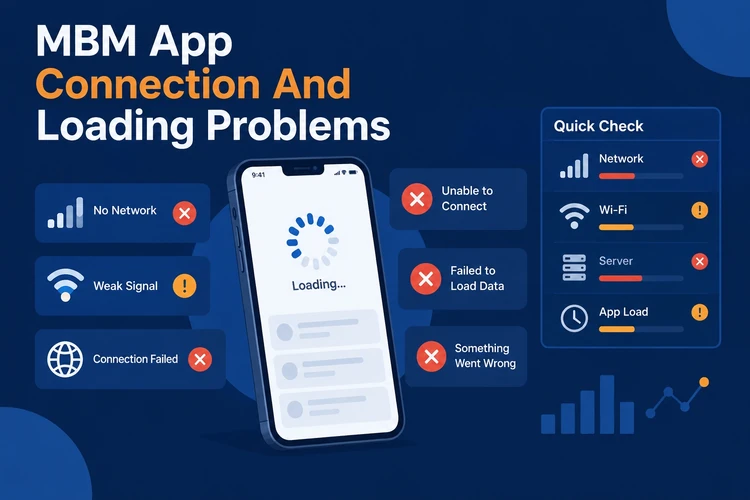
Standard Android messages can indicate network, display or service faults without confirming a problem unique to the operator.
The table below describes common Android examples. These are not confirmed error messages published by MBM.
| Error | Possible Cause | Recommended Check |
|---|---|---|
| Connection Failed | The request did not reach the service | Test other websites and switch between Wi-Fi and mobile data |
| Loading Screen Freeze | The process is waiting or using too much memory | Review the process, close background apps and restart the device |
| Network Timeout | The response exceeded the allowed period | Check connection stability, DNS settings and mobile data coverage |
| Blank Screen | App content or Android System WebView failed to render | Update WebView, close background apps and reopen the app |
| Server Error | The service could not process the request | Check official operator messages and retry after a short wait |
| Access Restricted | A location or account restriction may apply | Review Indian legal requirements and the displayed access notice |
| Too Many Requests | Repeated actions triggered a temporary rate limit | Stop repeated requests, wait and avoid automated retry tools |
Record the exact wording and occurrence time. This detail can help distinguish a local Android error from a response generated by the service.
Do not keep retrying a login or payment request after the same failure. Repeated attempts can trigger rate limits or create additional security checks.
MBM Login Not Working On Mobile
Login problems can result from expired sessions, incorrect device time or damaged authentication data. Check each possible cause before resetting the app.
- Confirm that your device date, time and time zone are set automatically.
- Check whether another app can load through the current Wi-Fi or mobile connection.
- Close the app fully, restart the device and make one login attempt.
- Remove an outdated account session through mobile browser or app storage settings.
- Check for duplicate verification messages and enter only the current code.
- Wait for the failed-code timer to finish before requesting another message.
If the failure continues across networks and devices, stop submitting repeated attempts. Account protection matters more than a fast retry.
Detailed password recovery belongs on the MBM Login page. Never share passwords or verification codes with support agents who request them through unofficial channels.
MBM App Installation And Update Failures
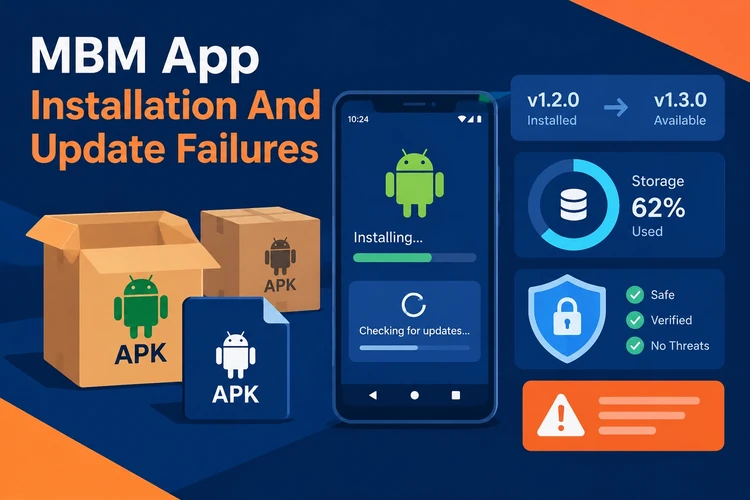
Installation failures may involve the package, device or downloaded APK. The error often appears before the new version replaces the current app.
Unknown APK sources can introduce damaged packages and security risks. Avoid any replacement file whose publisher or distribution method cannot be verified.
- A package-signature mismatch can stop Android from replacing an earlier installation.
- Insufficient storage may prevent the update from installing every required file.
- An unsupported Android release may block the current app version.
- An interrupted download can leave the APK incomplete or unreadable.
- A failed update may leave old and new components in an incompatible state.
Check the required Android version and package source before installing mbm india software. Remove conflicting versions only through official device settings.
Do not install a replacement APK simply because mbm app installation fails. Confirm its origin and read any Android security warning before proceeding.
How To Identify An MBM Server Or Service Outage
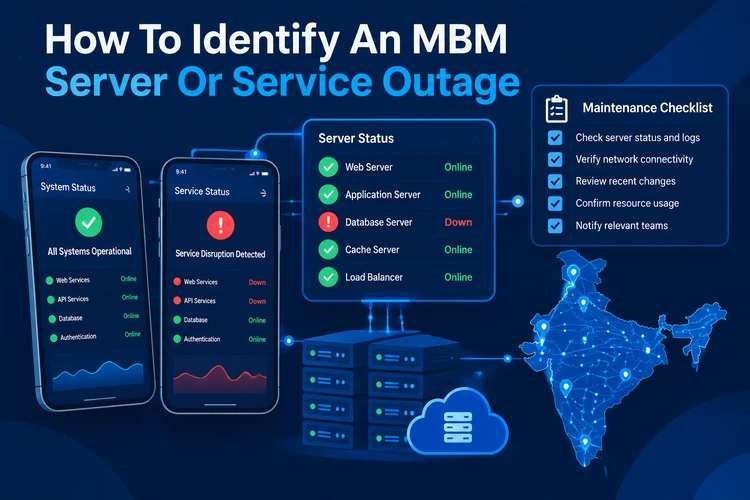
Several checks can show whether the issue exists beyond your device. Compare the same service on a second trusted device and network.
- Check whether mbm casino pages and account requests fail during the same period.
- Review official operator notices for maintenance, access updates or service incidents.
- Compare basic account access with attempts to open individual services.
- Note whether payment or verification requests fail while the app remains open.
- Ask support to confirm whether an incident is affecting multiple users.
- Wait for any announced restoration period before reinstalling the app.
A technical outage affects service functions and may include server errors, delayed requests or unavailable pages. A legal restriction is different because access may remain blocked on working equipment.
Indian law and local service rules may affect access to certain interfaces or games. This guide does not provide methods for bypassing location controls.
FAQ
The mbm app may not open because of low memory, an unsupported Android version, missing system components or damaged cache data. Restart the device, update Android components and check the app status.
Repeated crashes can follow a failed update, damaged app data, low storage or a background service fault. Review available memory, update the system and clear the cache before reinstalling.
Close background apps and restart the device. If the mbm online casino screen remains blank, update Android System WebView and clear the app cache.
The request may fail because of weak mobile data, unstable Wi-Fi, DNS issues, a server fault or a regional restriction. Test another website and switch networks.
Check storage, available memory, Android compatibility, app updates, network access and the displayed error. Avoid installing an APK from an unknown source.
Yes. Location controls and Indian legal requirements may restrict certain services or interfaces. A restriction can appear as an access error even when your device and connection work.